.jpg&w=1080&q=75)
How to Build a No-Code AI Email Bot That Automatically Filters, Categorizes, and Responds to Inquiries

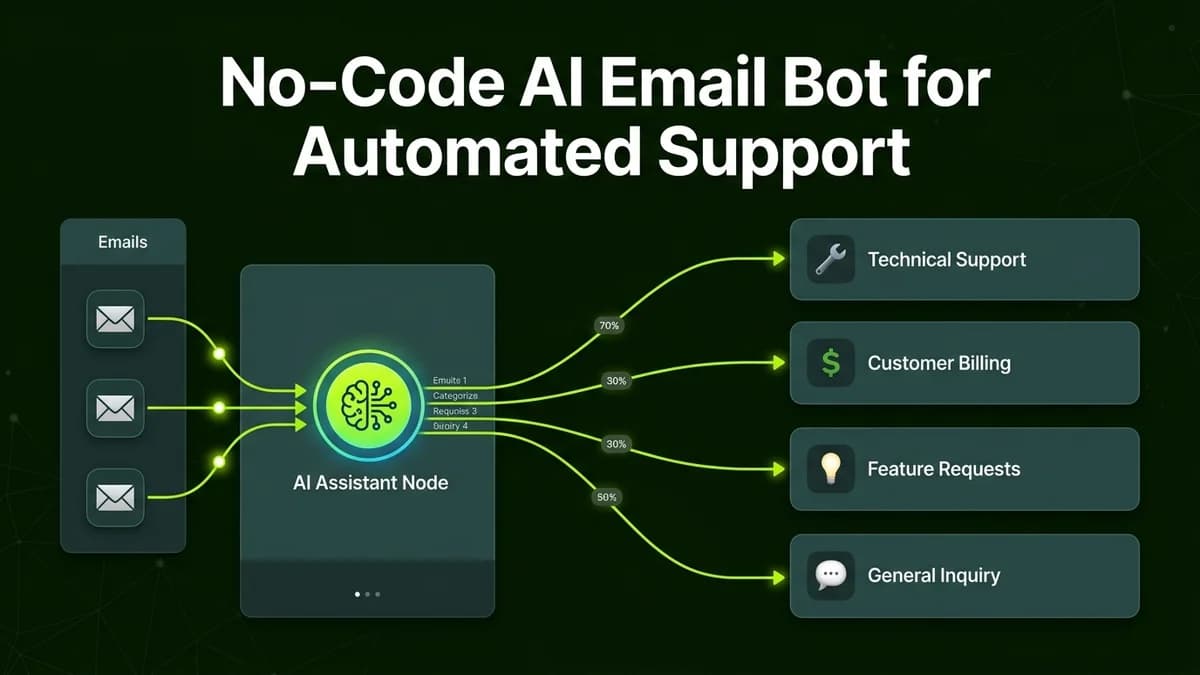
Non-technical business owners can build a no-code AI email bot by routing Gmail inquiries through Make.com or n8n to Claude or ChatGPT for automatic categorization and instant draft responses.
For small business owners, agency teams, and independent consultants, email management is often one of the largest daily productivity drains. Hours are consumed sifting through routine questions, filtering spam, forwarding messages to team members, and composing repetitive responses. Important prospective client inquiries can easily become buried under cold sales pitches and operational noise.
Creating an automated no-code AI email bot allows business owners to regain control over their inbox. The system reads incoming emails, analyzes context and sentiment, categorizes messages accurately, and creates tailored reply drafts ready for one-click sending.
Traditional Inbox Management vs No-Code AI Email Assistant
The table below demonstrates how an automated AI email bot transforms daily inbox operations:
Operational Metric | Manual Inbox Management | No-Code AI Email Bot |
|---|---|---|
Message Triage Speed | 2 to 5 hours spent daily sifting emails | Real-time classification in under 15 seconds |
Categorization Precision | Subjective tagging & missed priority items | Consistent rules-based AI classification |
Response Draft Time | 5 to 10 minutes writing each routine reply | Instant auto-generated contextual drafts |
Cold Pitch Filtering | Manual deletion of intrusive sales emails | Automatic archival of low-relevance pitches |
Human Error Rate | Frequent delays & buried client messages | 0 missed high-priority client inquiries |
The 3-Tier AI Email Router Architecture
Building an automated AI email processing assistant requires connecting three operational modules:
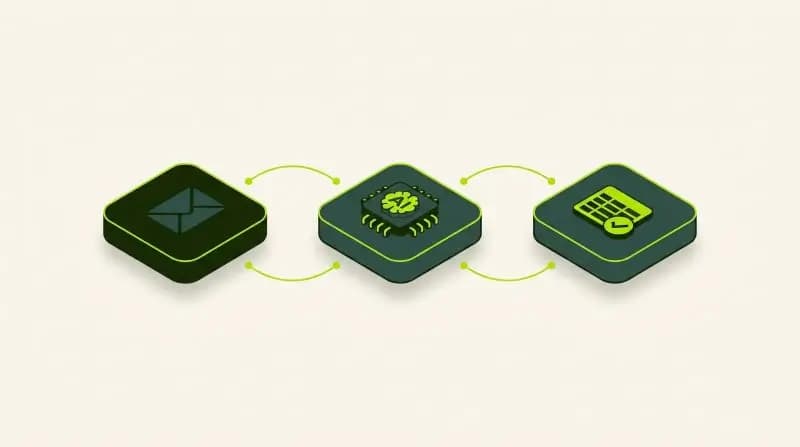
[Incoming Email Webhook Trigger] ──> [AI Context & Intent Classifier Node] ──> [Gmail Draft & Label Dispatcher]Module 1: Inbox Trigger Setup
The workflow connects directly to your Google Workspace Gmail or Microsoft Outlook account. Whenever a new email arrives in your inbox, a visual automation trigger captures the message sender, subject line, and body text.
Module 2: AI Intent Classification & Sentiment Analysis
The text is passed to an AI node powered by Claude 3.5 Sonnet or ChatGPT-4o. The AI executes a detailed evaluation prompt:
- Identifies Message Category: Client Support, New Sales Inquiry, Billing Question, or Cold Pitch.
- Assesses Urgency & Sentiment: High Priority, Neutral, or Low Relevance.
- Drafts Contextual Response: Generates a accurate reply adhering to specified company guidelines.
AI Email Bot Prompt Blueprint:
"You are an AI inbox management assistant for a professional agency. Analyze the incoming email: Sender: {Sender}, Subject: {Subject}, Body: {Body}.
Tasks:
1. Categorize into one of: 'Client Inquiry', 'Support Request', 'Invoice Question', or 'Cold Spam'.
2. If 'Cold Spam', output label 'Archive'.
3. If 'Client Inquiry' or 'Support Request', draft a professional 3-paragraph reply answering their query using our standard service terms. Output as a clean draft."
Module 3: Automated Labeling and Draft Dispatch
Based on the JSON output returned by the AI model:
- Routine Inquiries: The automation saves the auto-generated response directly into your Gmail Drafts folder. You simply review and click "Send".
- Urgent Issues: The bot applies a red "HIGH PRIORITY" label in Gmail and alerts you instantly on WhatsApp or Slack.
- Unsolicited Cold Pitches: The bot automatically applies a "Cold Pitch" label and skips the inbox view.
Step-by-Step Setup Guide: Building Your First AI Email Assistant
Follow this practical 4-step blueprint to construct your email bot in under 45 minutes:
- Connect Gmail to Make.com or n8n: Add the "Watch Emails" module as your scenario trigger.
- Add an OpenAI or Anthropic AI Module: Configure the AI module to accept email body text and process the prompt blueprint.
- Set Up Routing Logic: Add a router node to direct messages based on the AI category output.
- Configure Draft and Label Actions: Add Gmail modules to create drafts for legitimate inquiries and label incoming messages automatically.
Security & Privacy Safeguards for Business Inboxes
When implementing email automation, security and privacy are paramount:
- Enable Human-in-the-Loop Review: Keep automated email responses in Drafts mode rather than auto-sending directly until you gain full confidence in prompt accuracy.
- Use Paid Enterprise API Keys: Ensure your AI API credentials run on paid tiers that strictly prohibit model training on proprietary email content.
- Filter Sensitive Keywords: Set up exclusion rules so emails containing passwords, bank details, or confidential legal documents bypass AI processing entirely.
Frequently Asked Questions (FAQs)
Can a no-code AI email bot send replies automatically without human approval?
Yes. While the system can be configured to auto-send replies directly, setting the workflow to save responses as Gmail Drafts first provides a safe human review step before sending.
How does the AI email bot handle attachments?
Standard visual automation platforms can pass text attachments (like PDF briefs or plain text files) into OCR or AI parsing nodes to summarize document contents alongside email text.
How much does it cost to run an AI email bot daily?
API cost for analyzing 50 incoming emails per day using OpenAI GPT-4o-mini or Claude 3.5 Sonnet typically amounts to less than $3 to $5 (₹250 to ₹400) per month.
Works with both personal Gmail and Google Workspace email accounts?
Yes. Visual automation platforms like Make.com and n8n support both standard personal Gmail accounts and professional enterprise Google Workspace domains.
Learn to build AI workflows that handle your busywork — live sessions, real projects, zero code.
See the courseBeginner-friendly